

@ cites a source from your library and typing [[ links another of your notes. Those two keystrokes are the whole case for writing here instead of somewhere else, because a note that knows which papers it came from and which other notes it relates to can be found again in a year, whereas a note in a folder cannot. Your advisor also reads your notes, so what you work out here shapes what it says back to you.
Two kinds of note
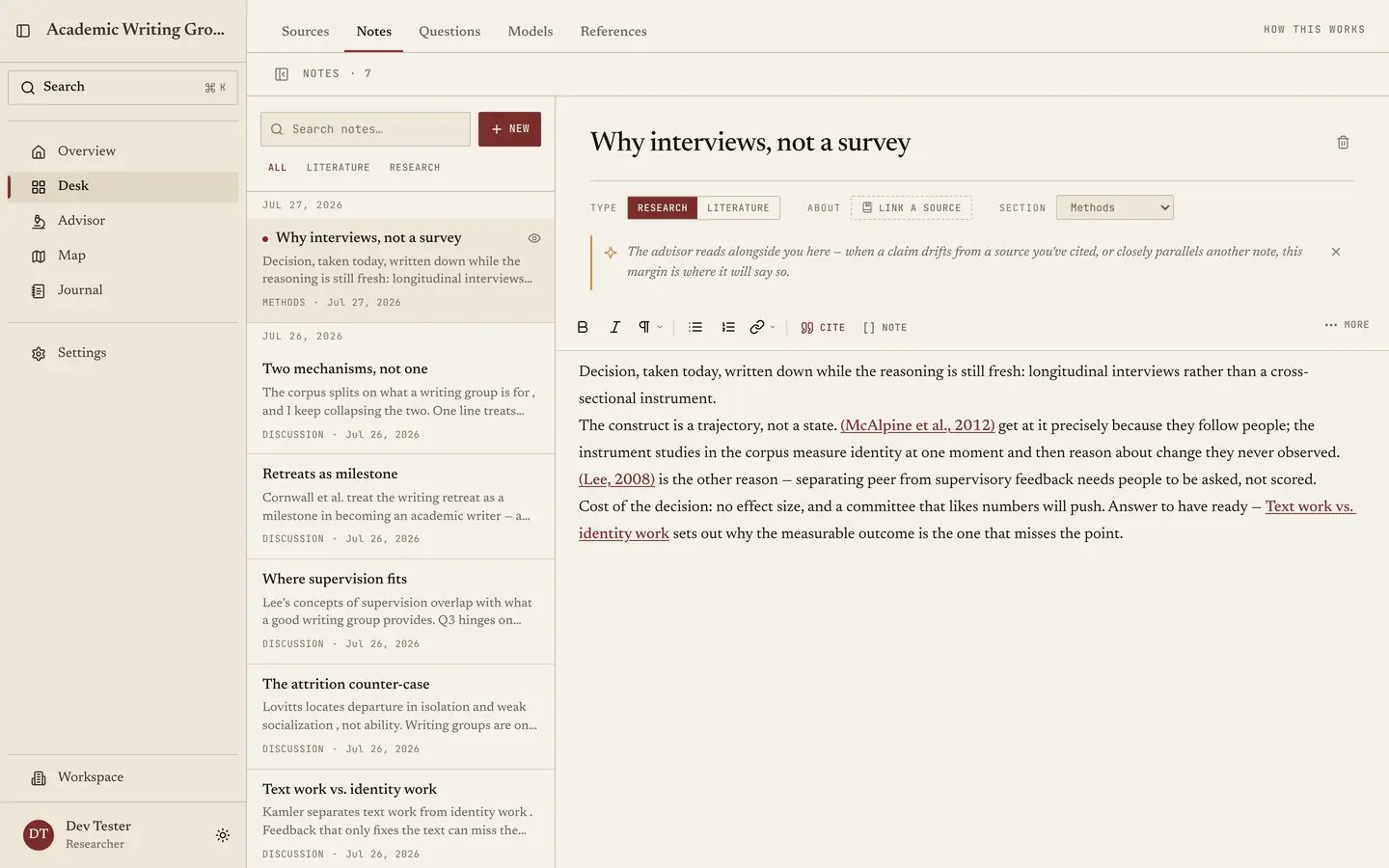
The list keeps Literature notes apart from Research notes. A literature note is about a source, covering what this paper argues, what is wrong with it and what you would use it for, while a research note is your own thinking, whether that is an idea, an argument taking shape, a method decision or a chunk of a chapter you are working through. Respect the distinction, because you use them differently: literature notes pile up while you read and get consulted while you write, whereas research notes are where the thinking happens and are usually what you come back for.Writing
A title, a section, and the body. The formatting toolbar starts compact. Open More → Show full toolbar to keep all tools visible, or choose Less to return to the compact toolbar. Quester remembers this choice for your account across notes, projects, reloads, and devices. Expanded tools wrap onto additional rows on narrow screens. Sections tag a note against the shape of your thesis. A new project starts with Introduction, Methods, Results, Discussion, Conclusion, References and Other, but the list is yours: rename Methods to Chapter 2, add Fieldwork, or drop what your discipline does not use. You can do all of this under Note sections in the project settings. The list’s order is the display order everywhere. Filing consistently pays off in the notes list, where you can filter by section and group the whole list by section instead of by day, which turns “show me everything I have written toward Methods” into a question you can actually answer. A note you have not filed yet simply has no section, and removing a section always asks where its notes should go. The editor handles headings, lists, tables, mathematics, code and images, saving as you go and telling you when it last saved, while the Focus mode button hides the note list to give your writing more room. ⌘B / Ctrl+B toggles bold while you edit; it never changes the layout. Outside editable fields, that shortcut toggles the app sidebar. The row under the title holds the note’s details: its type, the source it is about, linked questions, its section and when it was created. The arrow at the start of that row folds it away when you want the page to yourself, and Details brings it back. Like the toolbar, Quester remembers this for your account. A new table draws a line between every row and column. For a table in APA style, with only a few horizontal rules, turn the grid off under Table → Lines → Show all gridlines in the toolbar, then place the rules yourself. Drag across the cells you want, such as the cells under a column spanner, and choose Line above or Line below. For a whole row, click the handle at the row’s left edge and choose the same options there. With the cursor in a single cell, Table → Lines works on that cell. A table you paste from Word or Google Docs keeps the rules it had, and one with no vertical lines arrives with the grid off. Lines follow the theme: black on the light page, light on the dark one. Text you paste from Word, Google Docs or a web page keeps its formatting but not its plain black or white ink, so it stays readable when you switch themes. Real colours, such as red, blue or a mid grey, are kept; black, white and the near-black and near-white greys always take the theme’s own ink.Read an article or work on a model beside your note
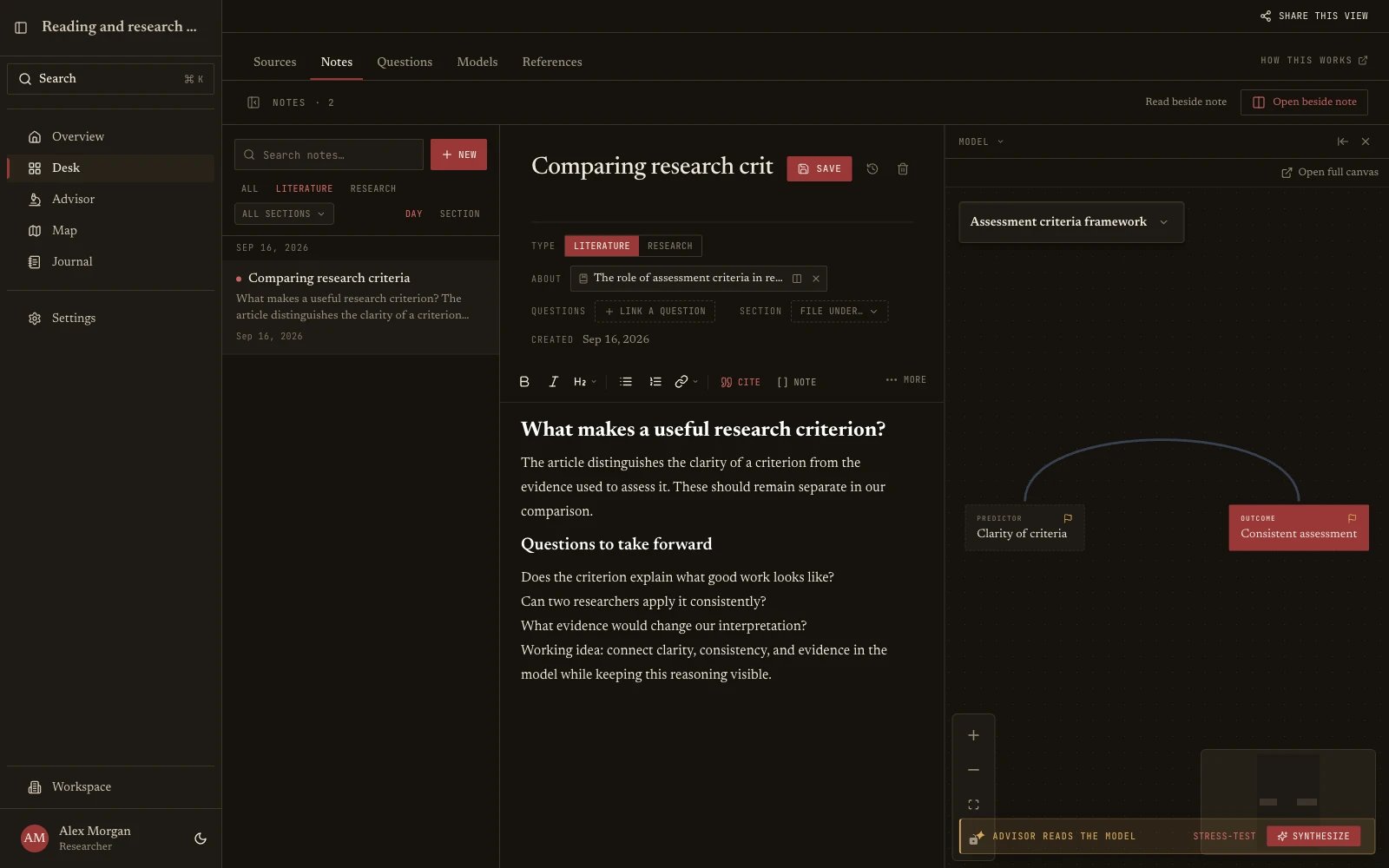
- Open the note you want to work on, then select Open beside note in the Notes header.
- Search for a source and choose Read document to open its attached article. Source details opens its bibliographic information instead. A source without a file is labeled No file attached; open its details to attach a document.
- Keep writing in your note while you read. For a note already linked to a source with a file, Read beside note opens that document directly.
Version history and restoring earlier work
The Version history button opens the note’s creation date and author, followed by saved revisions with their dates, authors, and change sizes. You can also open it by clicking the note’s Created date. Compare shows a revision against the current note. Restore asks for confirmation before copying that revision’s title and content into the live note as a new revision. Autosave keeps your current writing saved as you work. History is a coarser record: automatic checkpoints are created on saves at most once every 30 seconds, and the newest 50 unpinned automatic checkpoints are retained. It is not a record of every keystroke or every autosave. Restoring preserves the selected revision by pinning it, and the new restore revision is also kept outside the automatic-checkpoint limit. Existing history is not erased by restoring, though ordinary automatic checkpoints remain subject to retention. If the note changed elsewhere, Quester stops the restore and shows a conflict so you can review the newer work.Citing a source: @
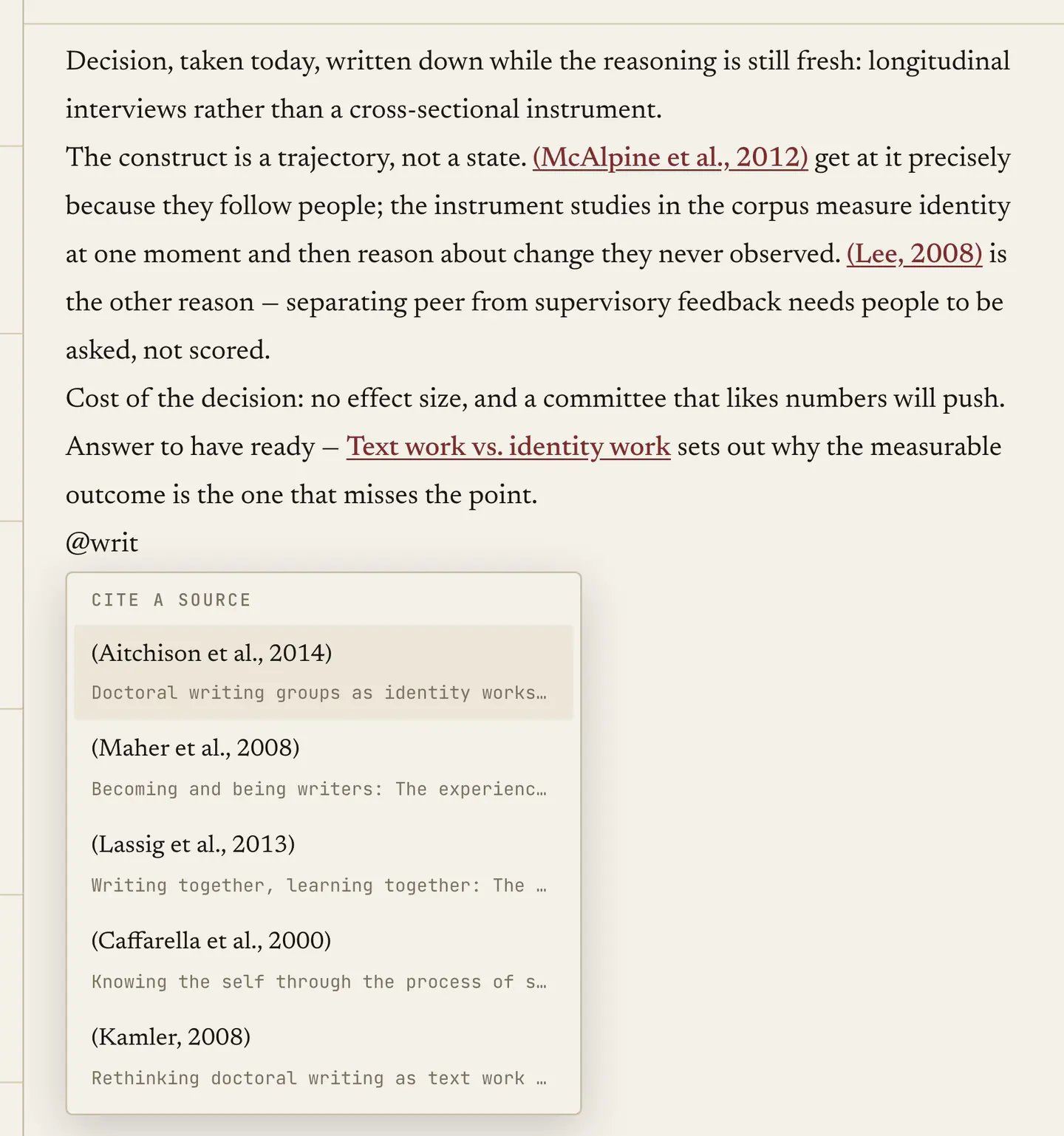
Type @ and a picker opens over your library, and picking a source puts the citation in, live-linked to the record.
Linking a note: [[
Type [[ and pick another note, which is how an argument gets assembled from pieces instead of trapped inside one long document.
Hover a link to peek at the target without leaving what you are writing, and follow it when you want to.
Form this habit: when you catch yourself restating something you wrote before, link it instead of restating it. Over three years that turns a heap of notes into a structure, and the structure is what you have to work with when it comes time to write.
The advisor in the margin
While you write, your advisor may leave a short note in the margin about what you are working on, in the context of your sources and questions, and dismissing it makes it go. It does not write for you and it does not edit your text, but reads over your shoulder, which is as much as a good advisor does while you are drafting.Finding notes again
Search the list by title and content, and filter by kind, Literature or Research. Every note has its own URL (/project/:id/desk/notes/:noteId), so you can link to one from anywhere, including your own writing outside Quester, and notes also turn up in ⌘K search from anywhere in the app.
What to actually write here
Two rules survive a long project. Write the note when you have the thought. The observation you had on page four of a paper is gone by page nine, which is why you read with the editor open, and three lines with an@ citation beat the perfect summary you never got round to writing.
Write for the version of you who has forgotten everything. “Interesting” tells you nothing in a year, whereas “contradicts Fairclough on sampling: they used purposive, this is convenience, and the effect size difference may come from that” still works in five.
Next: Questions.