Quester has a small map and learning it once saves you hunting later. There are two altitudes, the workspace holding many projects and a project holding one piece of research, and inside a project there are exactly five places to be. Nothing hides in a menu, every surface has a URL you can bookmark or send to someone, and one keyboard shortcut reaches all of it. When people say they cannot find something they are usually at the wrong altitude rather than in the wrong place.

Two altitudes

The workspace is the outer level, holding your projects, the people who share them, your plan and your account. Its surfaces are the front page, People, Activity and Settings, none of which belong to a single piece of research. A project is the inner level and the place you actually work. Sources, notes, questions, models, the advisor and the analysis are all scoped to that one project and cannot see the others, which is a decision rather than a limitation, since a corpus that mixed two dissertations together would give you readings about neither. Switch projects from the workspace sidebar on the left, or from search.

The five-item spine

Inside a project the left sidebar has five items, and the order they appear in is the order of the argument:
  • Overview shows where the project stands today and what deserves your attention next. Start here.
  • The Desk holds your materials and what you make of them. Five tabs: Sources, Notes, Questions, Models, References.
  • The Advisor is the reader that knows your project and asks you about it.
  • The Map is the analytical view of your library. Seven tabs, seven lenses.
  • The Journal records how the work actually moved.
Project settings sits below the five and separated from them, because it is configuration rather than work. Put roughly, the Desk is what you have, the Map is what it looks like from a distance, the Advisor is someone to talk to about it, and the Journal is what you did, while Overview is the room you come back to between sessions.

Tabs are real URLs

The Desk and the Map are tab shells whose tabs live in the address bar instead of in component state:
That means you can bookmark a tab, send someone a link to the exact view you are looking at, and use the back button the way you expect. A specific note or question has its own address too, so “the note I wrote about this” can be a real link. Old links still work, since URLs from earlier versions of the app (/literature, /notes, /research_questions, /models, /insights, /analytics, /connections, /progress) redirect to wherever that thing lives now instead of breaking.

Search, and the command palette

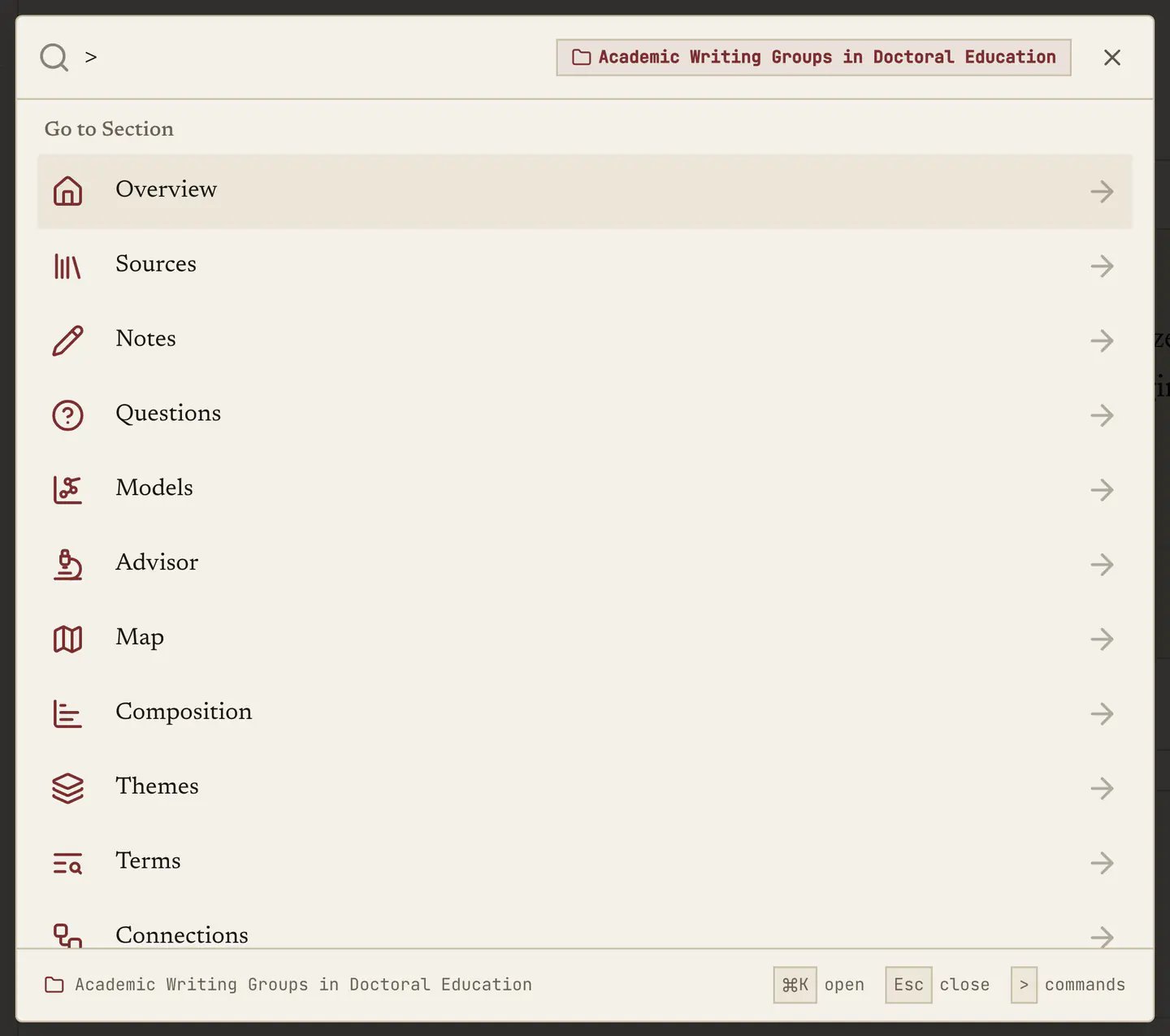
Press ⌘K anywhere in the app, or Ctrl+K on Windows and Linux. Type and it searches your work across sources, notes, projects, models, questions and keyword analyses. Inside a project it searches that project by default and shows the project name as a badge, so you always know what you are searching. Type > first and it turns into a command palette, from which you can jump to any surface in the current project (Overview, Sources, Notes, Questions, Models, Advisor, the Map and each of its tabs, Journal, Settings) or to a workspace surface. Most days this beats the sidebar, especially for the Map tabs, which are otherwise two clicks deep. Esc closes it.
”How this works”

Every substantial surface carries a small How this works label at the right of its header, which opens this manual’s page for that exact surface without taking you out of the app, and links here when you want the screenshots. It never opens by itself, and there are no tours, no coach marks and no tooltips following you around. Ask for an explanation and you get one, and otherwise the app stays out of your way.

What is gated

A paid plan is needed for the Advisor, Models, and the Map’s generated Themes analysis, published-record Terms, Connections and Venues. Authored themes remain available on every plan. None of them are hidden and none of them bounce you somewhere else. The tab opens and shows a lock in place, with a line about what it does and a link to the plans, while the tab bar around it stays put. So the free tabs beside it are still one click away, and you can see the shape of the product before deciding whether you want it. Everything else works on the free plan: sources, notes, questions, references, the Map’s Overview, Composition and Trends tabs, and the Journal. Next: The front page, or go straight to Sources if you would rather start working.
Last modified on August 30, 2026